Security key test
Security key test: check a YubiKey or Titan Key with passkeys
Plug in your key, open the prepared test and create a passkey. The debugger shows whether the key verified you, that the passkey stays on the key, which transports it reports and whether its attestation chains to a FIDO certified root. Nothing to install and no account.
- About 2 minutes
- Any FIDO2 key: USB, NFC or Bluetooth
- Chrome, Edge, Safari or Firefox
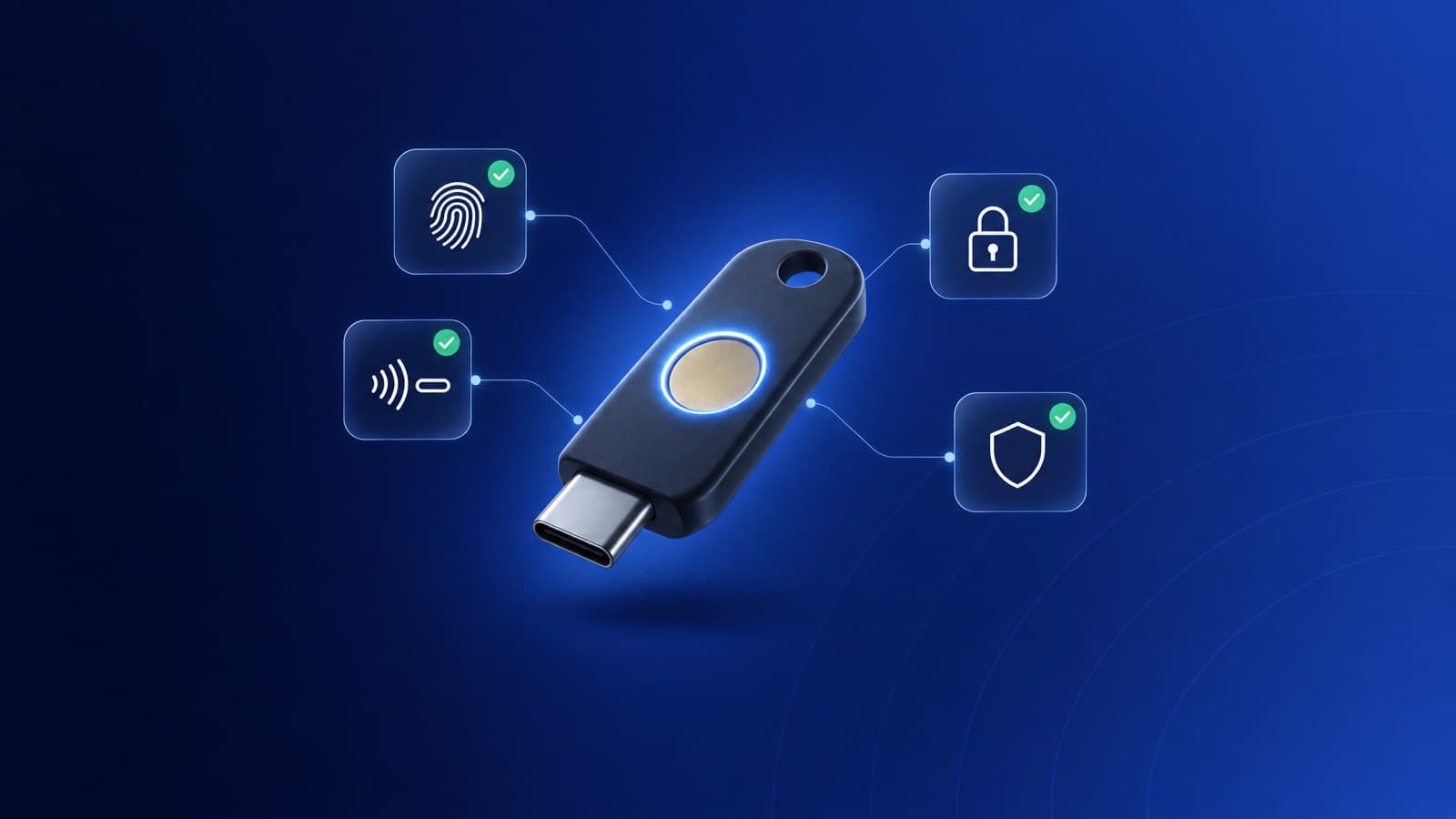
What the test checks
User verification
Whether the key checked its PIN or fingerprint, not only a touch.
Device-bound
That the passkey can't leave the key: no backup, no sync.
Transports
How the key connects: USB, NFC or Bluetooth.
Attestation
The model, firmware and FIDO certification, checked against the FIDO Metadata Service.
Test your security key in five steps
- 1
Open the prepared test
Open the prepared testThe link sets the options a security key needs: cross-platform attachment, a discoverable credential, required user verification, direct attestation and the security-key hint.
The username
security-key-teststays the same, so running the test again replaces the passkey on your key instead of filling another slot.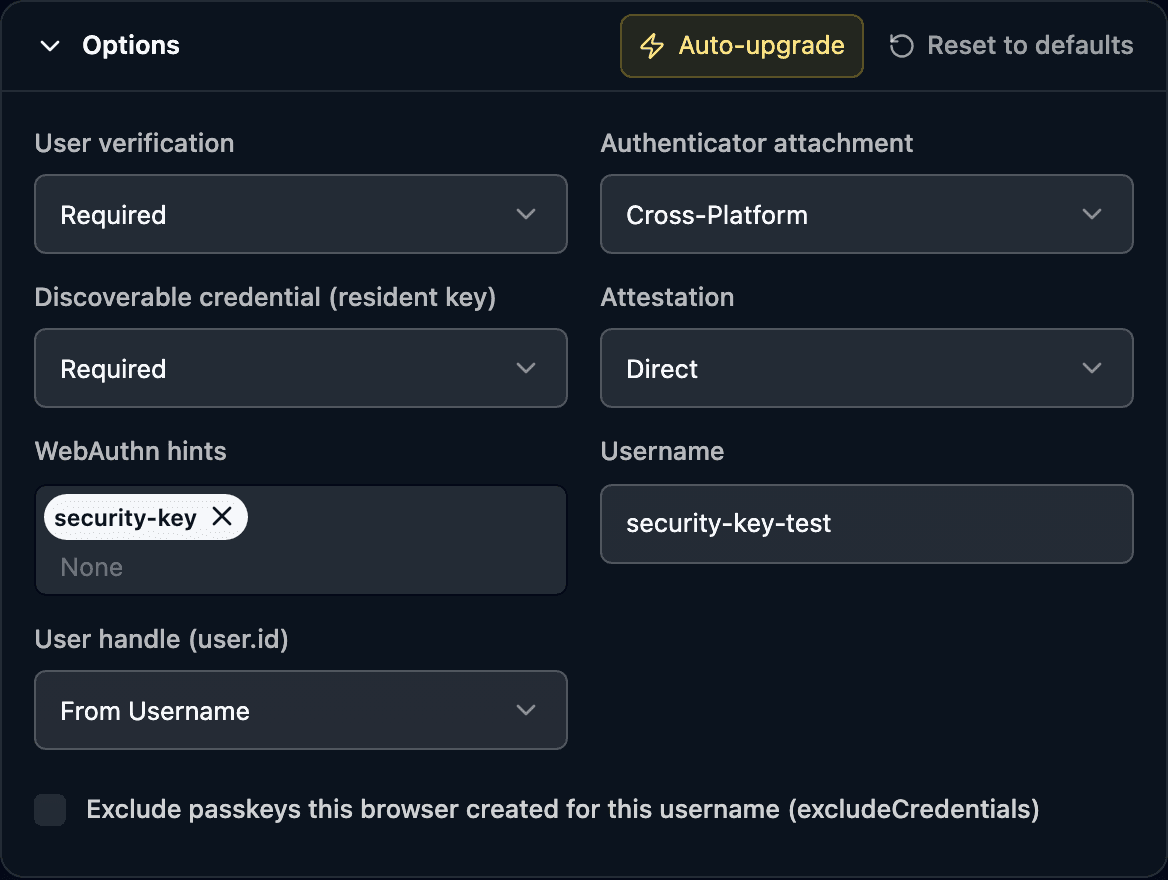
- 2
Create the passkey
Click Create passkey. Your browser asks for the key: insert it or hold it to the NFC reader, enter its PIN and touch it. A key without a PIN asks you to set one first.
- 3
Read the result
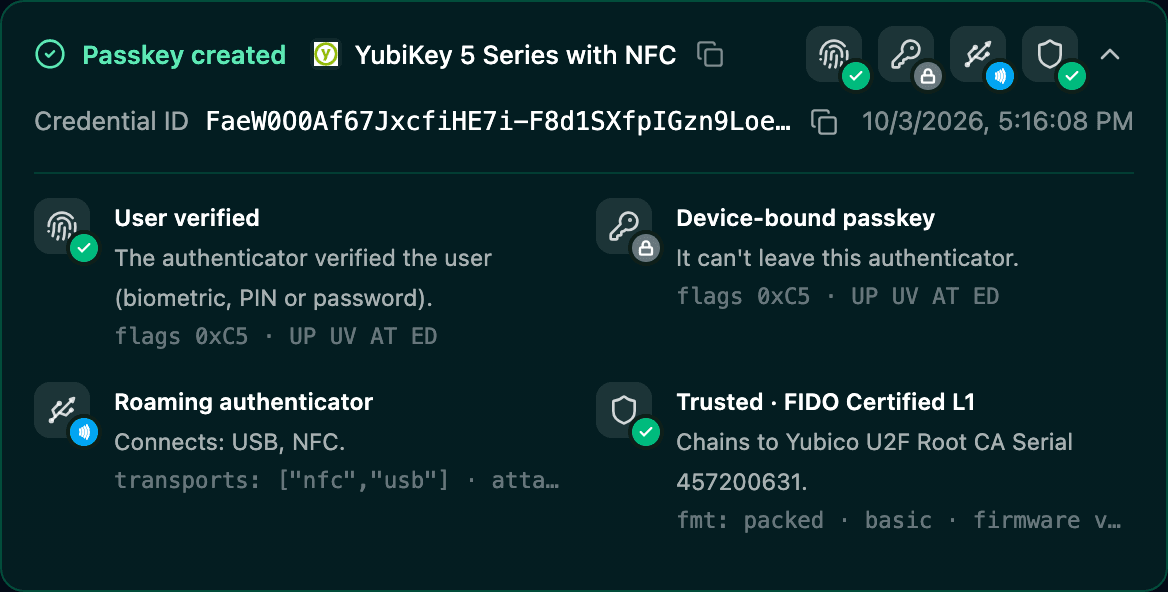
The strip under the run button names the key and shows four tiles. This YubiKey 5 NFC passed every check.
- User verified
- The UV flag is set: the key checked its PIN or fingerprint.
- Device-bound passkey
- Backup eligibility and backup state are off, as they should be on a key.
- Roaming authenticator
- Transports the key reported, such as ["nfc","usb"].
- Trusted · FIDO Certified
- The attestation chains to a root in the FIDO Metadata Service.
- 4
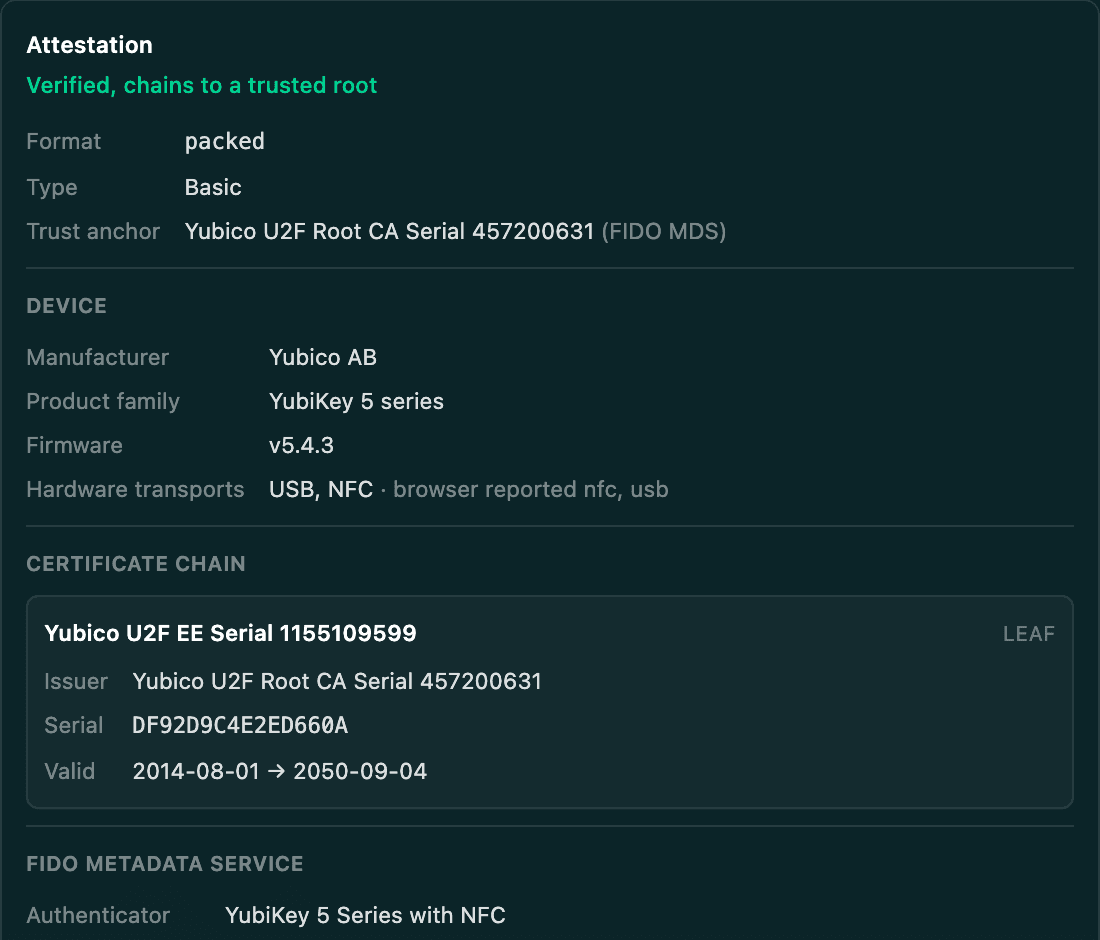
Check the attestation
With direct attestation the key signs the passkey with a certificate from its manufacturer. The debugger checks that chain against the FIDO Metadata Service and shows the manufacturer, product family, firmware and certification level.
Password managers can't prove their model this way. They send self attestation or none.
- 5
Log in and share the result
Switch to Authentication and click Log in with passkey to check that the key signs in as well.
Share turns the session into a read-only link for teammates or a bug report. The same link gives an AI agent the whole session as markdown.
When the test fails
Browsers report most failures with a few generic errors. These are the usual causes with security keys.
NotAllowedError
The prompt was cancelled, the timeout ran out or the key can't meet the options. Older U2F-only keys can't store a discoverable credential.
Run the test again and touch the key within the prompt's time. If it fails right away, try the key with discoverable credential set to preferred.
InvalidStateError
The key already holds a passkey that the options list in excludeCredentials.
Untick the excludeCredentials option or use a different username.
The browser asks for a PIN you never set
Required user verification makes a key without a sensor ask for its PIN.
Set a PIN in the prompt or with the vendor's tool, such as YubiKey Manager.
No NFC prompt on a laptop
Desktop browsers reach NFC keys only through a USB NFC reader.
Use USB on the laptop, or open the test on an Android phone and hold the key to its back.
More error codes and their meaning: WebAuthn errors in production.
Questions
- How do I test a security key with passkeys?
- Open the prepared security key test in the Passkeys Debugger, click Create passkey, insert or tap the key, enter its PIN and touch it. The result shows user verification, that the passkey stays on the key, its transports and whether its attestation chains to a FIDO certified root.
- Why does my security key ask for a PIN?
- The test requires user verification. A security key without a fingerprint sensor verifies you with its PIN. If the key has no PIN yet, the browser asks you to set one first.
- Does the test use a slot on my security key?
- Yes, one. The test creates a discoverable credential, which is stored on the key. It always uses the username security-key-test with the same user ID, so running it again replaces that passkey instead of filling another slot.
Related
- Security keys the community testedModels, FIDO certification levels, firmware and passkey slots from real tests.
- Platform authenticator testFace ID, Touch ID, Windows Hello and Android, synced or device-bound.
- Authentication observabilityWhere logins fail outside your server logs and the KPIs that show it.
Stuck on a result? Ask in the passkeys community on Slack and share the session link.
Corbado Observe
The debugger shows one login. Observe shows all of them.
The same client-side detail for every login in production, so you see where users fail before support tickets do.
Every authentication method
Per-user journeys
Device readiness
Your existing IdP