Automatic passkey upgrade test
Automatic passkey upgrade test: conditional create step by step
An automatic passkey upgrade creates a passkey without a prompt, right after a user signs in with a password their password manager filled. It is hard to test because it needs a real password login first and fails silently. The debugger stages that login and runs create() with mediation: "conditional" for you.
- About 3 minutes
- Chrome with Google Password Manager or Safari with Apple Passwords
- HTTPS (not localhost in Safari)
What the test checks
Browser support
Whether this browser reports conditionalCreate in getClientCapabilities().
Autofilled password
That your password manager filled the password. A typed one never triggers an upgrade.
Same account
That the signed-in username matches user.name of the options.
Fitting options
No required user verification, attestation none and no blocking excludeCredentials.
Test an automatic upgrade in four steps
- 1
Open the prepared test
Open the prepared testThe link sets options that fit a silent upgrade: platform attachment, a discoverable credential, user verification preferred and attestation none. It opens the upgrade dialog right away.
The two checks at the top tell you whether this browser supports conditional create and whether your options fit. If you change the options, the dialog offers to adjust them for the run.
- 2
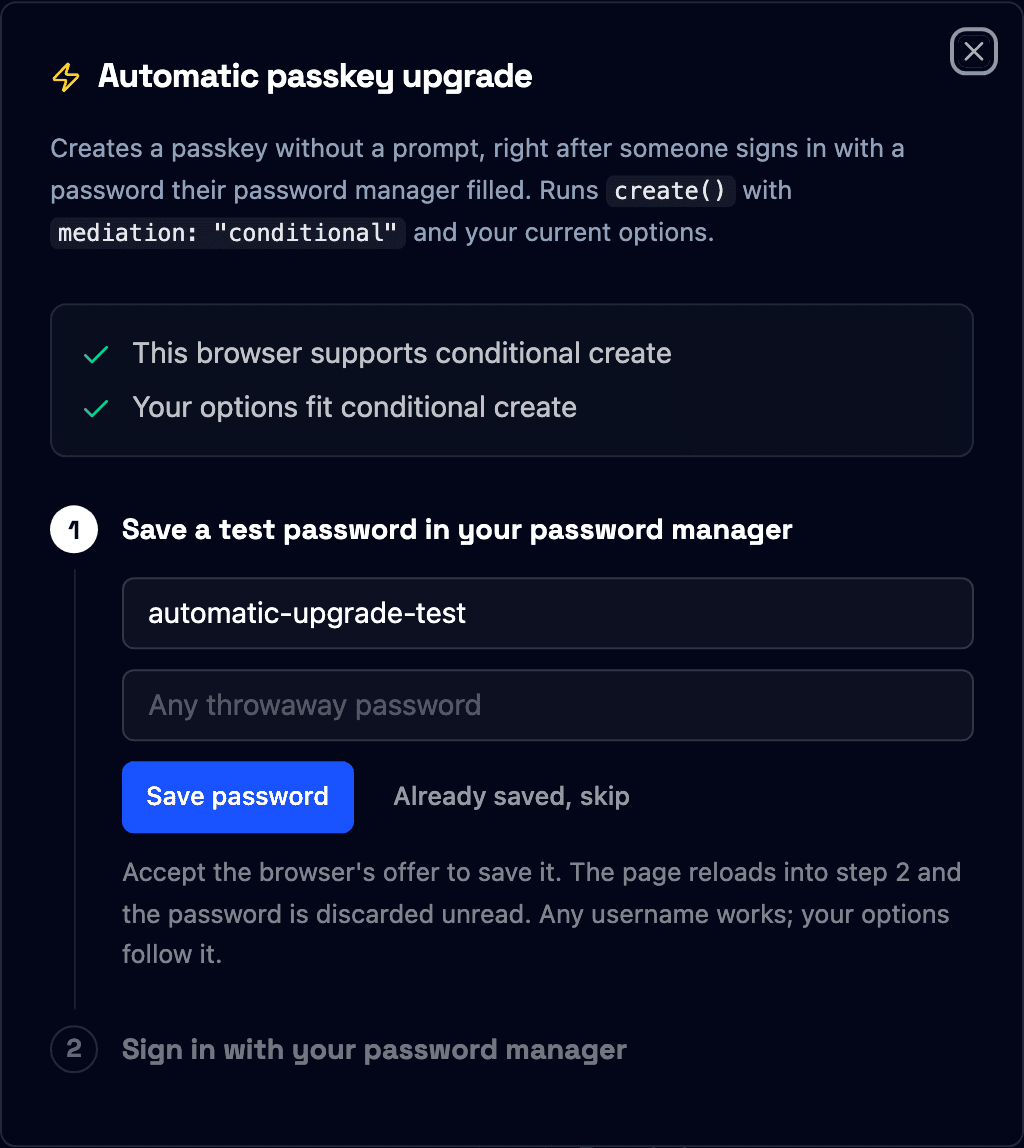
Save a test password
Enter any throwaway password and click Save password. Accept your browser's offer to save it. The page reloads into step 2 and the server discards the password unread.
If Safari doesn't offer to save, click the key icon in the password field and choose a strong password. Safari saves it right away.
- 3
Sign in with your password manager
Let your password manager fill both fields. The line under the fields turns green once it did. Then click Sign in and upgrade.
The debugger calls
create()withmediation: "conditional"straight away. No prompt appears. On success you see at most a notice that a passkey was saved, the response opens in the debugger and the Authentication tab is preset to the new passkey.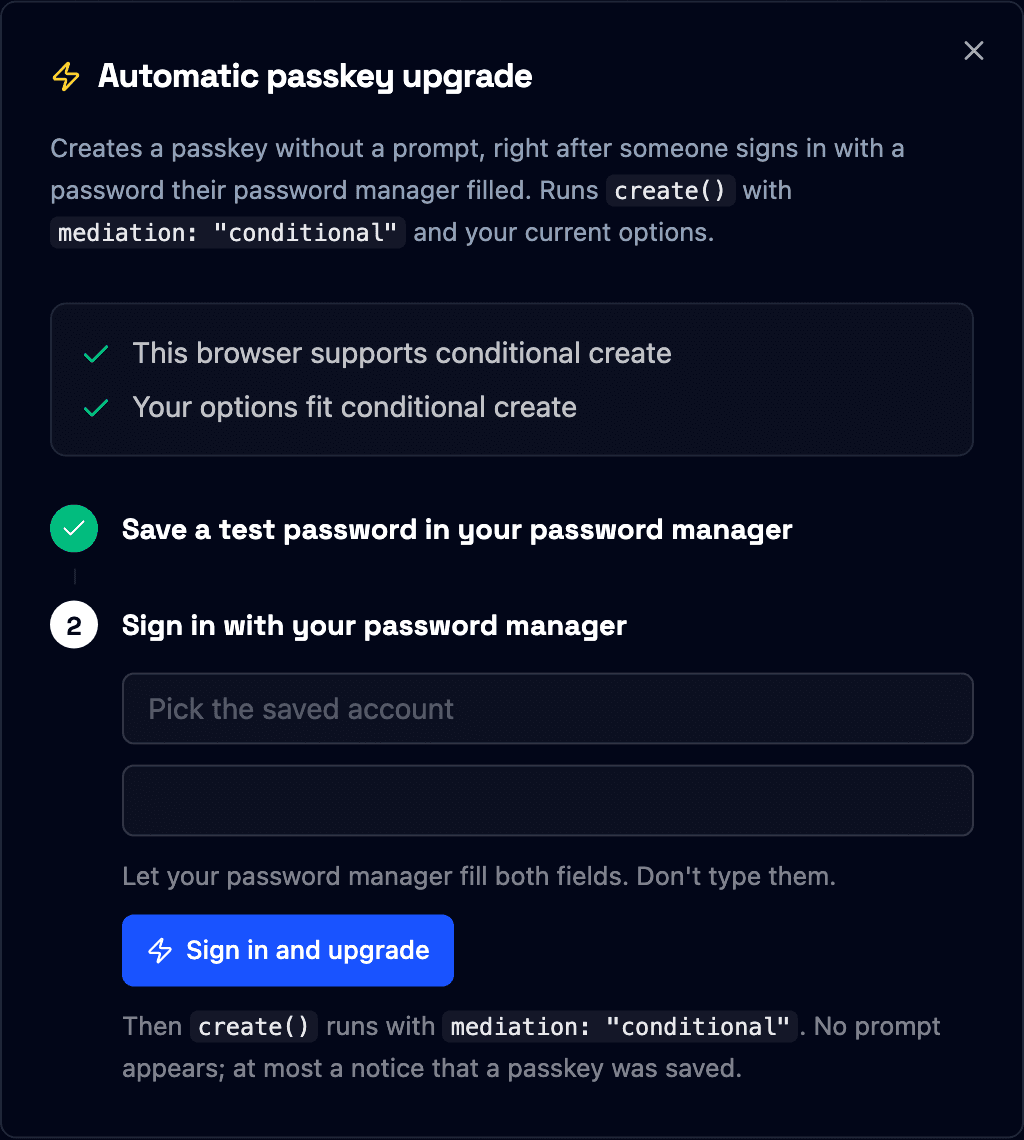
- 4
Read why nothing happened
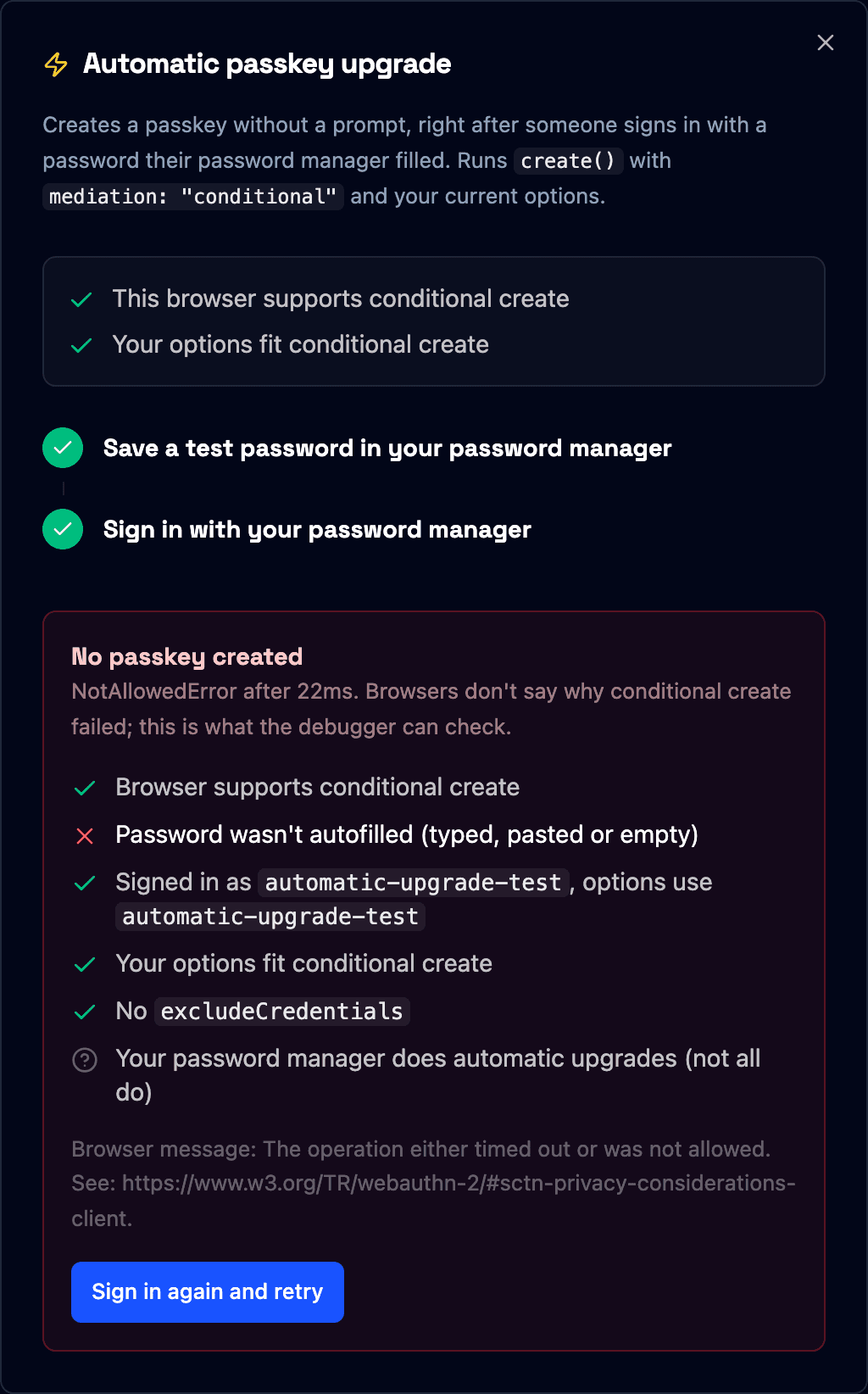
When the browser refuses, it only says NotAllowedError. The dialog lists what it can check instead. In this run the password was typed, not autofilled, which is enough to block the upgrade.
- Password wasn't autofilled
- Typed or pasted passwords never lead to an upgrade.
- Signed in as … options use …
- Only the account that just signed in gets a passkey.
- excludeCredentials
- A listed passkey for the account blocks the upgrade.
- Browser message
- The raw error text, usually the generic privacy notice.
When the upgrade doesn't happen
Conditional create fails without a reason on purpose, so a site can't probe the user's password manager. These are the usual causes.
The password was typed
Upgrades only follow a password the password manager filled in this session.
Sign in again and pick the saved account from the autofill suggestion.
A different account was filled
The password manager only upgrades the account that just signed in.
The dialog shows the mismatch. Click "Use … in the options" and try again.
Safari never offers to save the password
Safari doesn't save passwords on http://localhost.
Test on an HTTPS host. The Passkeys Debugger runs on HTTPS.
Required user verification
A silent upgrade can't verify the user, so required user verification fails.
Leave "Adjust your options for conditional create" on, or set user verification to preferred.
Platform support and adoption numbers: Conditional Create for Passkeys: Support and Effectiveness.
Questions
- What is an automatic passkey upgrade?
- Right after a user signs in with a password their password manager filled, the site calls create() with mediation: "conditional". The password manager then creates a passkey without a prompt, at most with a short notice. The WebAuthn name for this is conditional create.
- Why does an automatic passkey upgrade fail without an error?
- Browsers reject conditional create with a generic NotAllowedError when a condition isn't met, so a site can't probe the user's password manager. Typical causes: the password was typed instead of autofilled, the username differs from user.name, user verification is required or the password manager doesn't do upgrades.
- Which password managers do automatic passkey upgrades?
- Google Password Manager in Chrome and Apple Passwords in Safari. On Apple devices the Passwords settings have an option to allow automatic passkey upgrades, which must be on. Other password managers may ignore the request.
Related
Stuck on a result? Ask in the passkeys community on Slack and share the session link.
Corbado Observe
The debugger shows one login. Observe shows all of them.
The same client-side detail for every login in production, so you see where users fail before support tickets do.
Every authentication method
Per-user journeys
Device readiness
Your existing IdP